
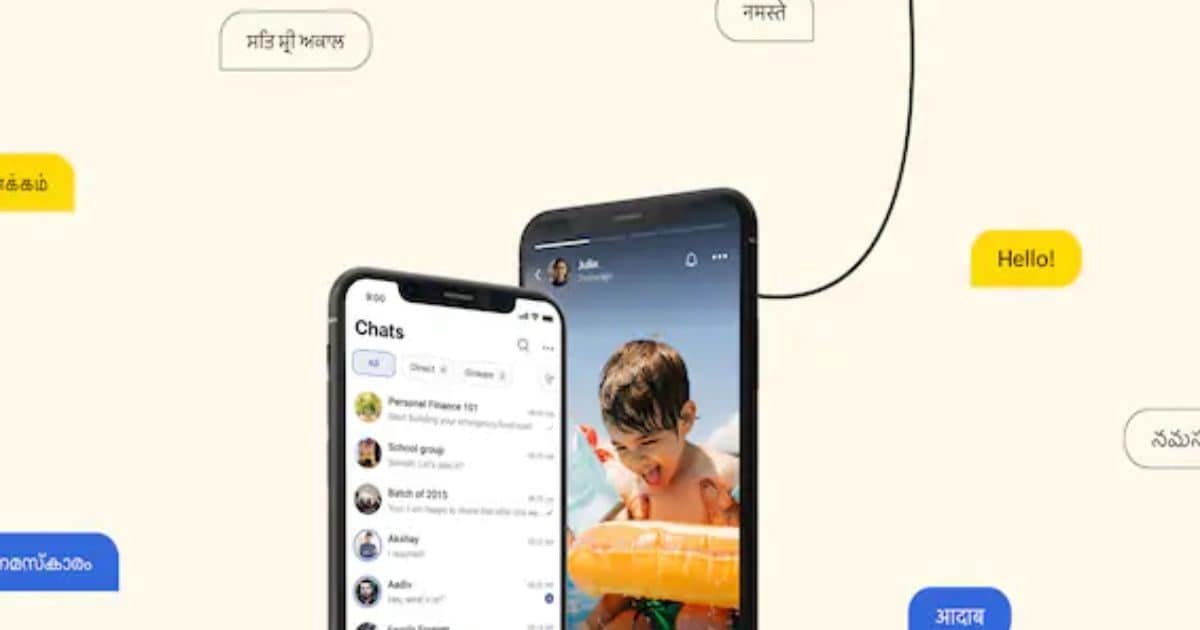
How does Chat Backup feature work? Arattai’s new feature allows users to keep their chat history safe. Android users can save their chats on Google Drive, while iPhone users can use iCloud.
The most important thing is that the backup can also be encrypted, due to which your personal chats remain completely safe. Additionally, you can also choose whether to include only text in the backup or also photos, videos, and documents.
How to turn on Chat Backup?
To use the backup feature in Arattai, first update the app, then follow these steps:
- Open Arattai App
- After Settings go to Chats
- Tap on “Chat Backup”
- Select a Google Drive or iCloud account
- Click on “Enable Backup” or “Back Up Now”
- Set the frequency of auto backup (Daily, Weekly, Monthly)
If you want, you can also turn on encrypted backup and generate a recovery key.
How to restore chat?
If you’re using a new phone or reinstalling the app, you can easily restore chats:
- Install and open Arattai
- Login with your account
- Select “Restore Backup” option
- Select backup from Google Drive or iCloud
- Wait for the process to complete
Important things to keep in mind
- Have a good internet connection during backup (Wi-Fi is better)
- Have enough space on phone and cloud storage
- Have the correct Google or Apple account login
- Adding media increases backup size
- Turn on encryption and protect recovery keys
- Keep apps and devices updated
Arattai’s new Chat Backup feature will prove to be very useful for the users. This will not only keep the chat data safe, but will also make data transfer easier when the device is changed.
If you use Arattai, then definitely turn on this feature so that your important chats are always safe.
Discover more from News Link360
Subscribe to get the latest posts sent to your email.